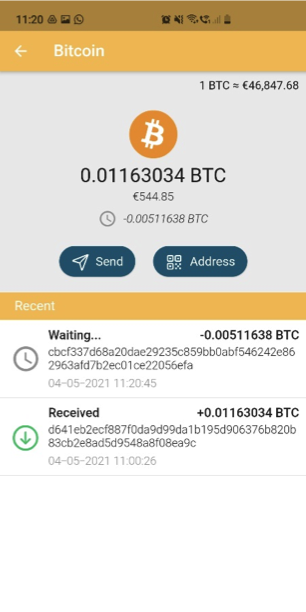
How to create your wallet
Looking for other options?
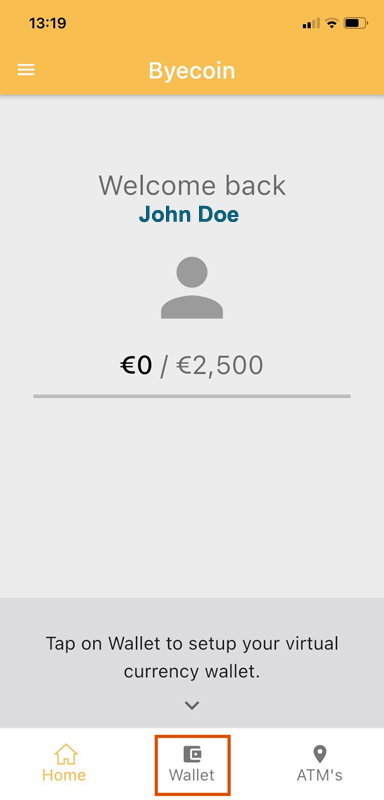
1. Click on Wallet in the bottom menu
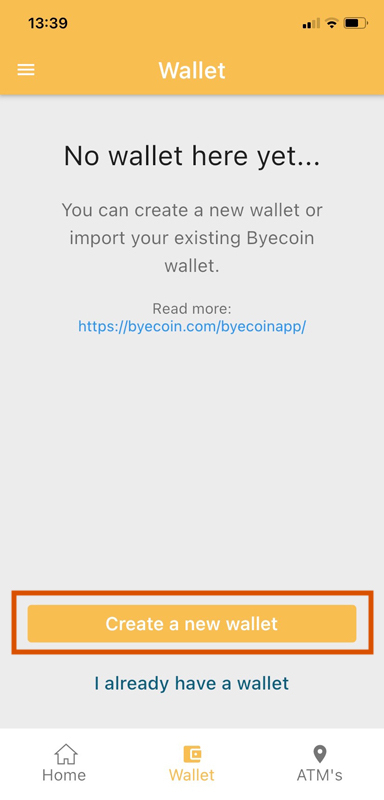
2. Click on Create a new wallet
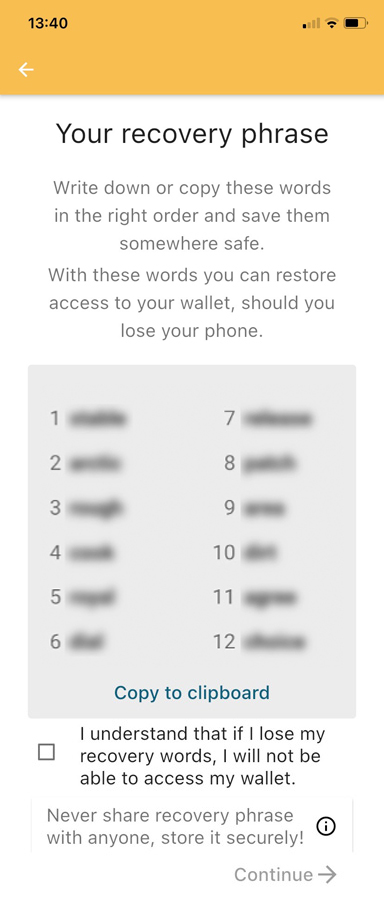
3. IMPORTANT: Write down the 12 words. This is very important. If you lose these 12 words you will not be able to recover your wallet if anything happens to your wallet! Once you have written down the 12 words press the “I understand” checkbox and press Continue”.
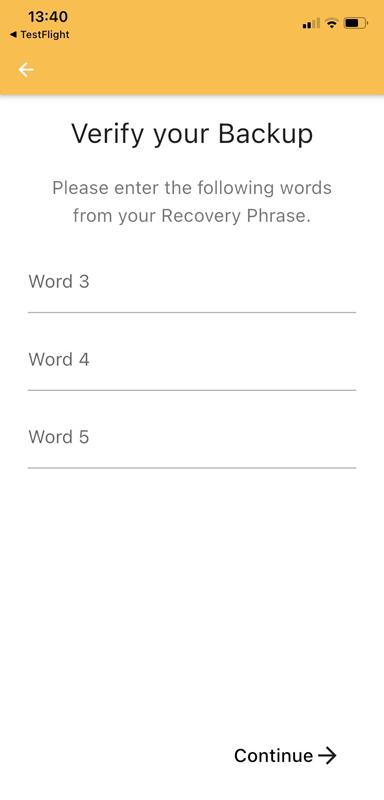
4. Enter the verification words, which you can find in the previous 12 written down words. Once all 3 words are filled in press Continue.
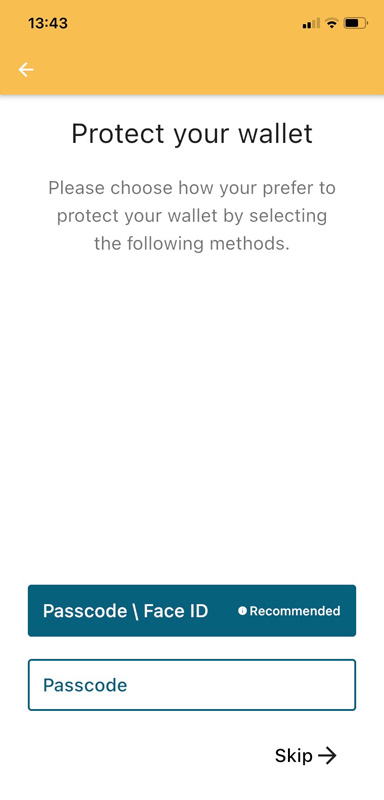
5. Secure your wallet with a custom passcode or fingerprint / face ID scan. Tap on one of the two options.
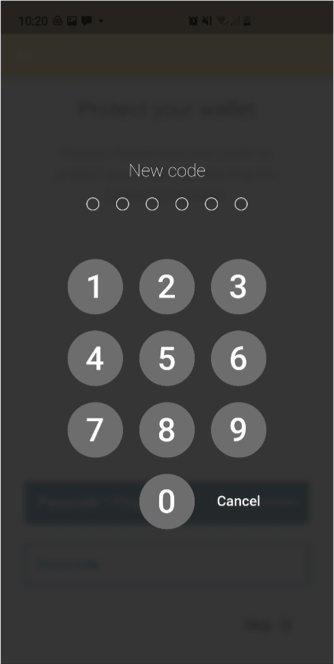
6. You will need to enter a 6-digit number on the next screen. After this you need to reenter the same code to verify your code.
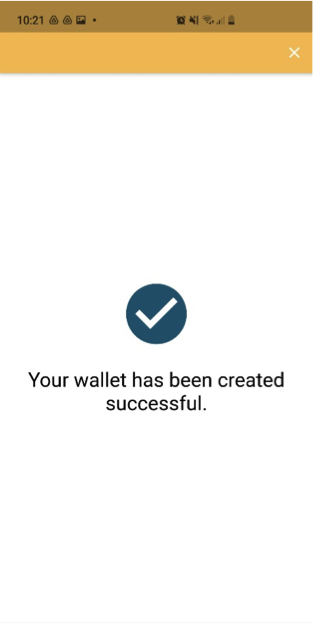
7. Congratulations, your wallet has been successfully created.
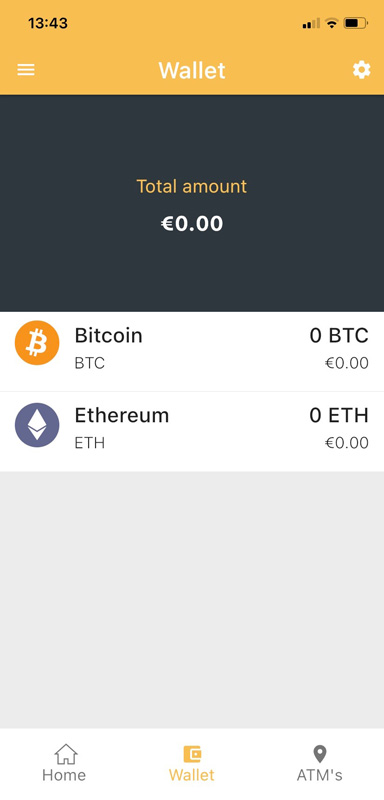
8. Now you will see your wallet overview.
How to buy Bitcoin
at the Byecoin ATM’s with our new wallet
Looking for other options?
1. When you open your wallet you will see the screen below. You can go back to this screen if you click the home button on the bottom left. This page will show your current limit and shows 2 buttons, one for Bitcoin and one for Ethereum.
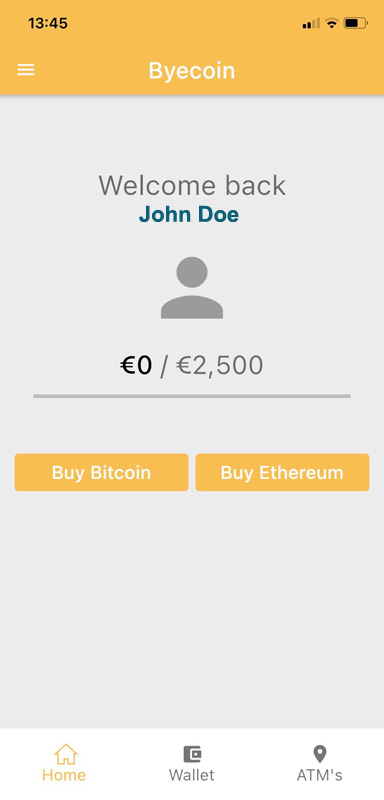
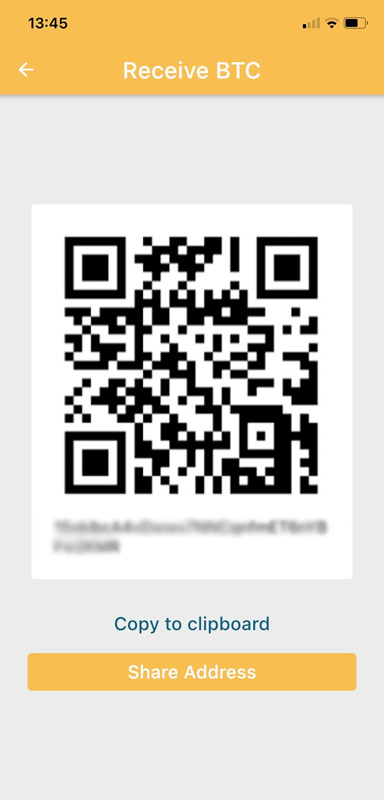
2. If you want to buy Bitcoin, press the Buy Bitcoin button. Once this is done a QR code will appear. This QR code can be used to buy Bitcoin at our Bitcoin ATM’s. If you would like to buy Ethereum you click on the Buy Ethereum Button. This QR codes can also be used to receive funds on your Byecoin wallet from other people.
How to send Crypto
with our new Wallet
Looking for other options?
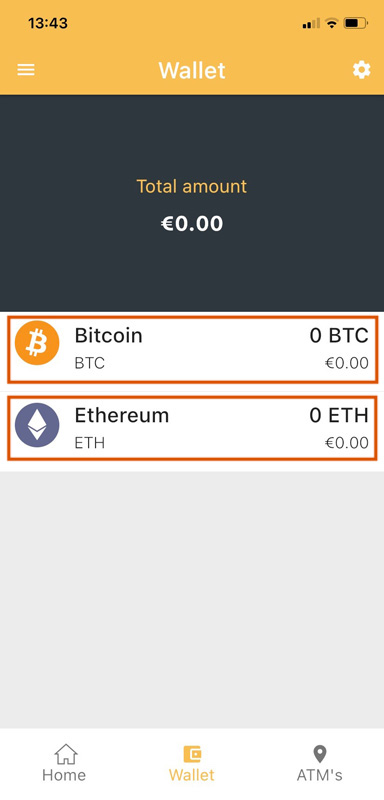
1. Open the Byecoin APP and click on “Wallet” (circled in Red)
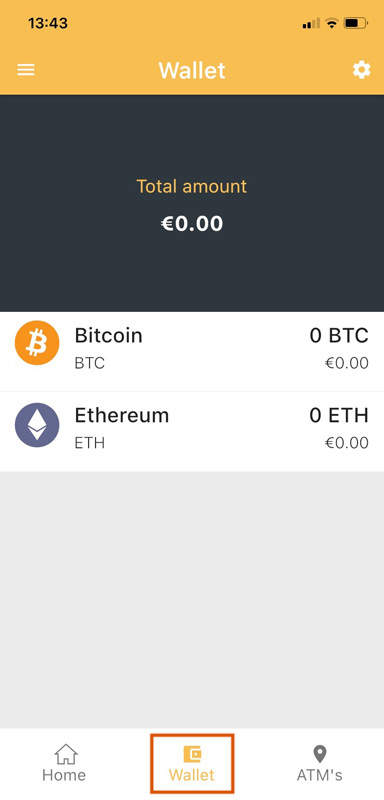
2. Select which coin you want to send by clicking on either Bitcoin or Ethereum
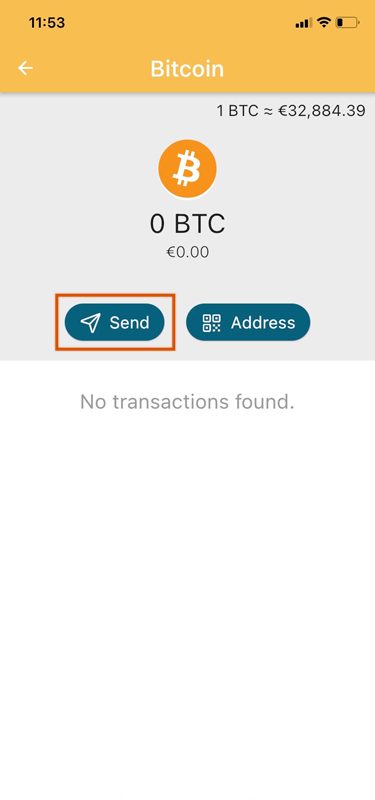
3. Click on the Send button (Highlighted in Red)
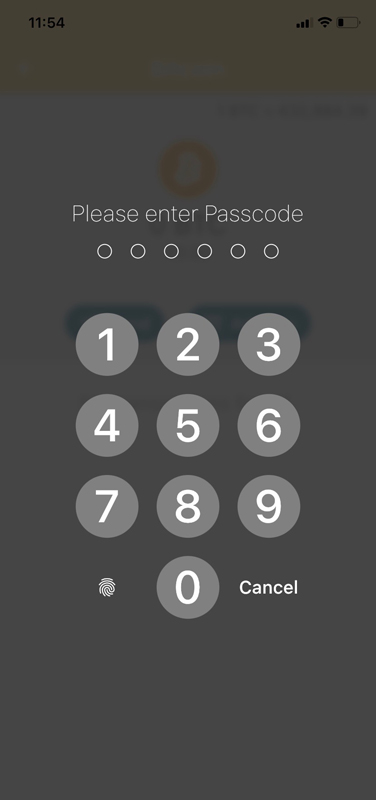
4. On the next screen enter your Pincode or fingerprint / face ID
5. At the top of the next screen you will see your Balance. Below this you will see “Recipient” Here you can enter a Wallet code manually, copy a wallet code into the field or scan a QR code by pressing on the icon highlighted in Red.
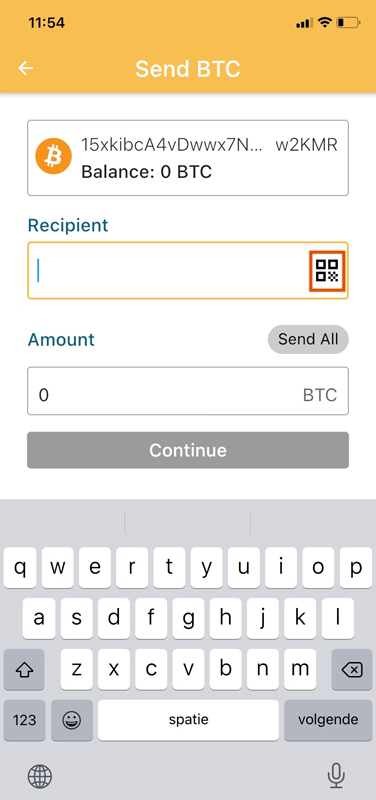
6. In the Amount field you can enter the amount you want to send to the Recipient. You can also choose to send all your available funds at once by clicking on the “Send All” button.
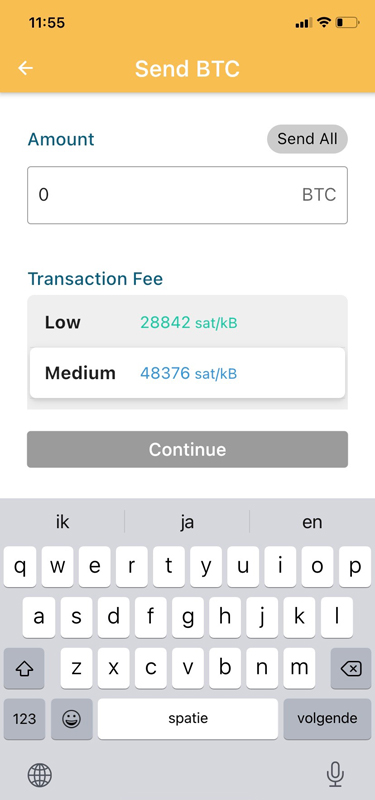
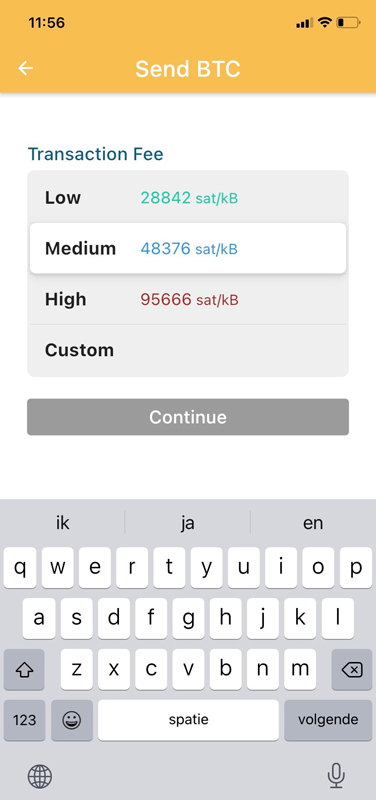
7. At the bottom you can choose how high of a Fee you want to use for your transaction. How higher the fee, the faster the transaction will be done. The standard option will be Medium. If everything is filled you can click on Continue.
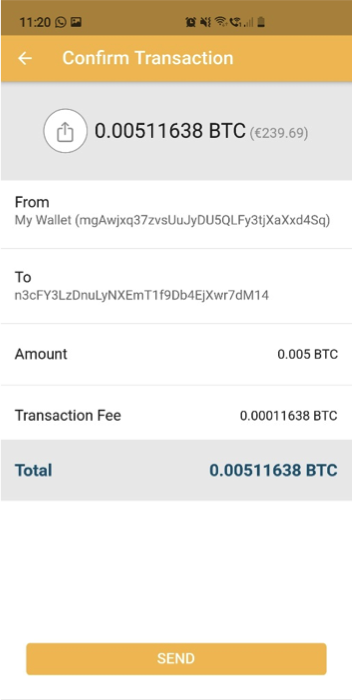
8. Once you have clicked on Continue you will see a Confirm Transaction screen. This screen holds a summary of the info you entered in the previous screen. If everything is correct press the Send button.
9. You can check the status of the transaction in the overview you see on step 3.